
The first step in hitting a target is setting a target!
The Atlas Monthly Planner is purpose built for hospitality operators, allowing them to set monthly goals for sales, labor, cost of goods sold (COGS), covers as well as other key metrics that improve their business performance. You can now easily set your targets and share them with your team.
Targets are set in Atlas at the beginning of each month using the Atlas Monthly Planning module. These targets are for the current month.
To watch the Atlas Monthly Planner Instructional Video, click on the video below:
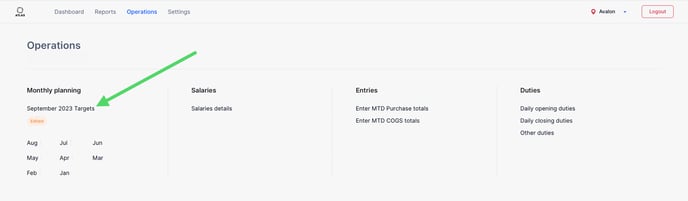
To access your monthly planner please open your Atlas account and navigate to:
Operations → Monthly Planning → Current Months Name (see example below)
💡At the beginning of the month you will also see a prompt to complete your Monthly Planner when logging into your Atlas account
You can navigate through the Monthly Planner sections by clicking on each section step at the top. You will need to click on Continue at the bottom of each page in order to save your changes.

Note that at the end of each section you can click on “Continue” to save your changes, “Previous” to go back one step, and “Quit monthly setup” to cancel any changes you have made.
.png?width=688&height=59&name=Screen%20Shot%202023-10-01%20at%209.40.50%20PM%20(1).png)
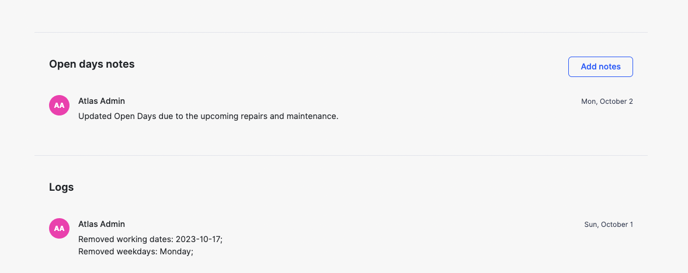
Monthly Planner will also keep a track of all changes made so that you can be any adjustments made by yourself or other users. Users can also leave notes at the bottom of each section.
Let’s get started!
1. Set Operating Days
Overview
The Atlas monthly planner provides a user-friendly interface to set up and confirm the days your restaurant will be open for business. This guide will walk you through the process of adjusting your operating days so that Atlas knows exactly which days you will be open and closed for this month.
💡In order to give you the most accurate targets, Atlas divides all of your targets by the specific number of days you plan to operate each month.
Confirming Operating Days
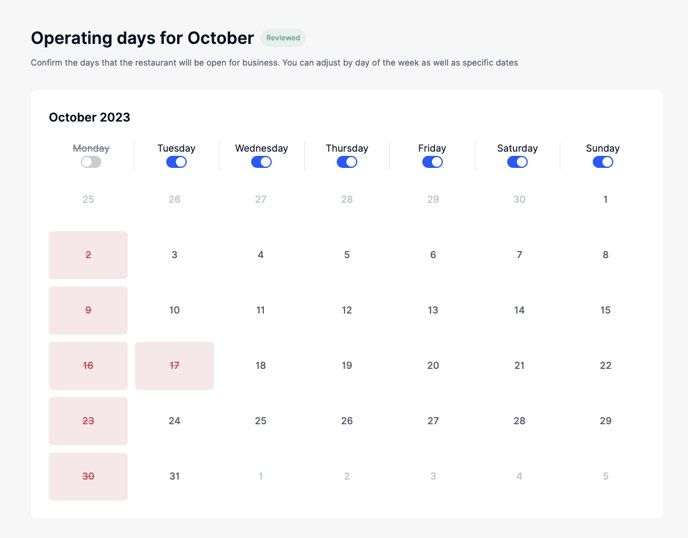
- Overview of the Month: The main screen displays a monthly calendar for you to confirm the “open” as well as the “closed” days. The current month and year are displayed at the top (e.g., "Operating days for October 2023").
- Toggling Weekly Operating Days:
- Each day of the week has its own toggle button.
- To set the restaurant as closed for a specific day of the week throughout the month, click on the toggle button next to the day name. For instance, to close on all Mondays, click the toggle next to "Monday” and you will see all of the Monday’s turn red, meaning they are closed.
- A deactivated toggle indicates that the restaurant is closed on that specific day of the week.
- If you would like to be closed on all “Mondays” except for one, toggle Monday’s to closed and double click that specific date and it will “open” that specific Monday for you.
- Setting Individual Days:
- Days that the restaurant is open will be displayed in white, while closed days will be displayed in pink with a red line through the date number.
- To close the restaurant for an individual day, simply click on the desired date. The date will turn pink with a red line through the number, indicating the restaurant is closed on that day.
- To revert this and set the restaurant as open for that day, click on the pink date again.
- Reviewing Monthly Summary:
- At the bottom of the screen, you can see the "Total number of open days" which provides a count of the days you're open.
- The "Holidays and other closed days" section lists out the specific dates on which you have decided the restaurant will be closed.
Additional Tips:
- The Atlas monthly planner will carry over the opened and closed days from the previous month for your convenience.
By following these steps, you can ensure all of the targets, budgets and trends inside of Atlas are helping guide you to hit your target.
2. Set Sales Target
Overview
In the Sales Target section of the Atlas Monthly Planner, users can establish sales objectives for the upcoming month, review past performance, and adjust daily sales forecasts. Note: the daily sales target you set for Monday for example, will be for all of the Mondays in the current month.
💡Atlas helps you distribute your sales target across weeks and days. For each week in the given month, a target will be assigned based on the number of days open in that week and the average sales selected per day of the week.
Setting and Reviewing Monthly Sales Target
- Monthly Sales Target:
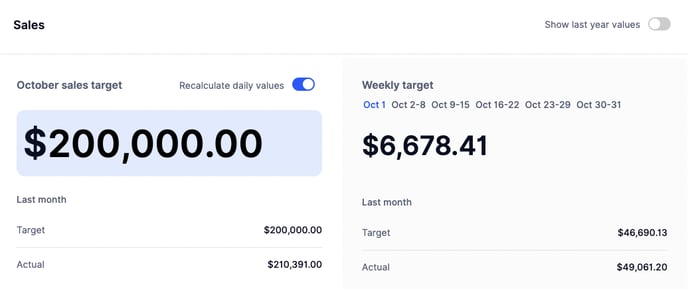
- View the sales target for the current month displayed prominently at the top. For instance, "$200,000.00" for October. Sales Target will be populated with last months actual Sales as a starting point.
- Atlas uses your historical sales records for each day to provide a target across Monday to Sunday, for the days you plan to operate. Leave the Recalculate daily values toggle “on” if you wish to distribute this target value across the days of the month automatically.
- Alternatively, if you wish to adjust the daily targets without affecting the Total Month target, click the Recalculate daily values toggle so it is in the “off” position
.png?width=688&height=293&name=Screen%20Shot%202023-10-01%20at%209.34.42%20PM%20(1).png)
- Comparison with Last Month:
- Under "Last month", view the target and actual sales for the previous month.
- This allows for a quick analysis and understanding of how your business performed against set objectives in the previous month.
- Weekly Sales Breakdown:
- On the right, see the breakdown of your sales target by week.
Adjusting Daily Sales Forecast
- Overview:
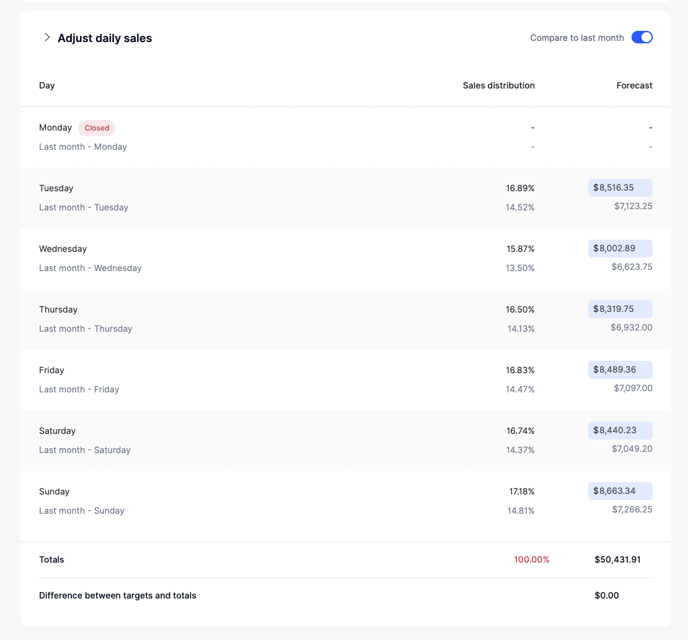
- Under "Adjust daily sales", find a breakdown of sales targets by each day of the week.
- Modifying Daily Targets:
- Enter the desired sales target value next to each day. This will adjust the forecasted sales value for that specific day across the month.
- If the Recalculate daily values toggle is on,Atlas will automatically distribute your weekly sales per each day of the week based on how those sales have been distributed historically over the last 4 weeks.
- Compare the daily target with the actual performance from the last month. Use the "compare to last month" toggle to compare the average Monday's sales from last month and see how your current month's target compares.
- Sales Distribution and Forecast:
- On the right side, view the percentage of sales distribution for each day (e.g., Monday at 2.38%).
- See the forecasted sales target figure for each day next to the percentage (e.g., $1,111.11 for Monday) Note: this target will be the target for example for all Monday’s this month. This is the target that will appear in your daily report and forecaster.
- Totals and Differences:
- At the bottom, "Totals" will show you the sum of all daily sales targets you’ve set.
- "Difference between targets and totals" indicates any discrepancy between your monthly target and the sum of your daily sales targets. Aim for this to be $0.00 to ensure alignment between your monthly target and daily forecasts.
Additional Tips
- Use historical data and yearly comparisons to make informed decisions about future sales targets.
By following this guide, you can effectively set, review, and adjust your monthly, weekly and daily sales targets using the Atlas Monthly Planner, ensuring your business remains on track for your specific goals.
3. Set Check Average Target
Overview
The Check Average section in the Atlas Monthly Planner allows you to set up and monitor the average sales amount per person for the upcoming month. This guide will provide step-by-step instructions on how to navigate and utilize this section effectively.
Setting and Monitoring the Check Average
- Check Average Target:
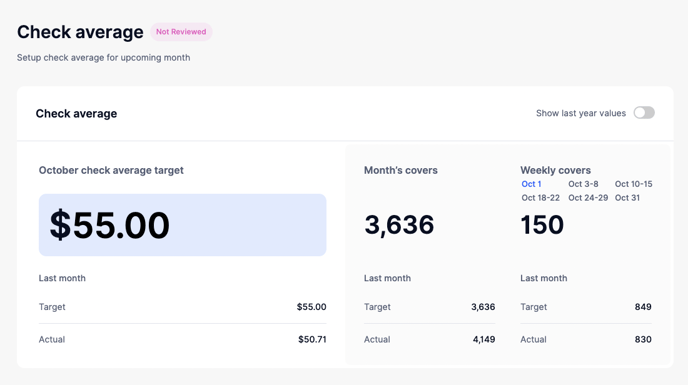
- At the center of the page, find the target check average (spend per head) for the current month, for instance, "$55.00" for this month.
- This is the average sales amount you’re targeting for each person/cover for the month.
- Reviewing Last Month’s Performance:
- Below the target for the current month, see the performance for the previous month.
- "Last month" shows two figures:
- Target: The check average target you had set for the previous month.
- Actual: The actual check average achieved for the previous month.
- Month’s Covers:
- On the right, view the total number of covers (number of guests served) needed at the set check average target to hit this months sales goals. For instance, "3,636" covers for this month at $55 will hit the Months Sales Goal of $200,000.
- Once you have set your check average target take a look at how many covers are needed to hit your target and then ensure to compare this number to your actual covers from last month. If there is a large discrepancy, ensure you and your team understand how this difference will be achieved.
- Weekly Covers Breakdown:
- Further to the right, see a breakdown of the needed number of covers for each week of the month to hit the Sales goal.
Additional Tips
- Comparing monthly and yearly figures helps in setting more accurate targets based on historical data.
By following this guide, you can seamlessly set, review, and adjust your check average targets using the Atlas Monthly Planner, ensuring optimal sales performance for your business.
4. Set Labor Target
Overview
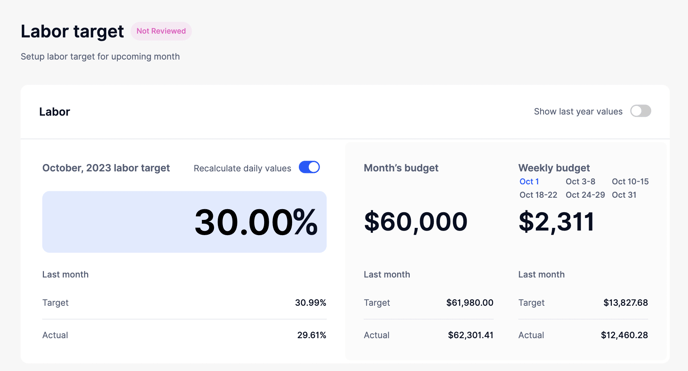
Your labor target is set as a % which represents the total amount of dollars you plan to spend on salary and hourly employees this month divided by your Month’s sales target.
For example, with sales target of $200,000 and Labor target of 30%, you are planning to spend $60,000 on salary and hourly labor fees this month.
-
Editing the Labor Target:
- To edit the Monthly Labor target simply enter your target % in the blue box at the top left of the Labor target module.
-
Monthly Overview:
- Atlas automatically sets your last month’s actual labor % as this month’s target. You can adjust the target as you see fit.
- Use the Recalculate daily values toggle if you want the system to automatically adjust daily values based on the overall monthly target.
- In the "Month's budget" section, you can view the budgeted amount for labor.
- The weekly budget breakdown considers is based on Open Days during that week.
-
Comparing with Previous Values:
- The Show last year values toggle allows you to compare this year's values with the previous year for better analysis.
- Under the Last month column, you can see the target and actual labor percentages and budget amounts from the previous month for comparison.
- Adjust Daily Labor:
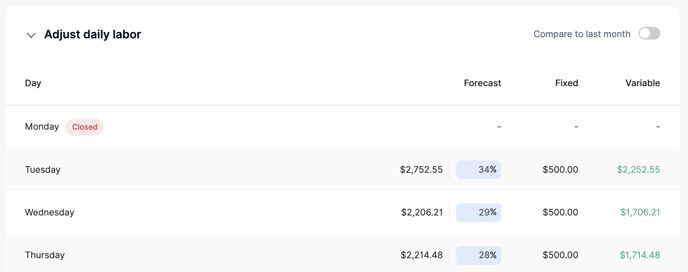
- This section allows you to set and view daily labor forecasts, fixed costs, and variable costs.
- For each day of the week, input the Forecast value and the system will calculate the Fixed and Variable costs. You can manually adjust these if needed.
- At the bottom, Totals will give you a summation of all daily values.
- The Difference between targets and totals shows if there's any discrepancy between your set target and actual values. Aim for a 0.00% difference for accurate budgeting.
4. Set Variable Labor Distribution Target
Overview
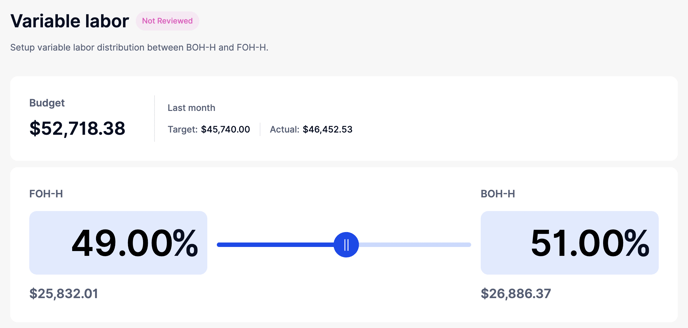
This section allows you to set up the distribution of variable (hourly) labor between Front of House Hourly (FOH-H) and Back of House Hourly (BOH-H).
- Monthly Budget Overview:
- Check the current month’s variable labor Budget. This is the amount allocated for both FOH-H and BOH-H combined.
- Refer to the Last month column for a comparison. You can view the target and actual amounts from the previous month.
- Setting FOH-H and BOH-H Percentages:
- Adjust the percentage slider or input box for FOH-H to set the desired percentage of the budget to be allocated for the front of the house. The monetary value corresponding to that percentage will be displayed below.
- Similarly, adjust the slider or input box for BOH-H for the back of the house.
- Alternatively, you can enter the percentage in one of the two sections (BOH-H or FOH-H) manually as well.
- Historical Data:
- Beneath each labor type (FOH-H and BOH-H), you can view historical data to inform your decisions.
- It is recommended to use last months actual Variable Labor distribution as this months target unless a change in distribution is needed (patio opening/closing, seasonal, etc)
- In the historical data, you’ll see the target percentage, the actual percentage, and the corresponding monetary values from the last month.
Additional Tips
- This Variable distribution percentage is how the budgets for FOH-H and BOH-H are set. Atlas calculates the value of today’s labor target, subtracts the fixed/salary amount and then divides the remaining variable labor amount in accordance with these settings.
4. Set Sales Mix Target
Overview:
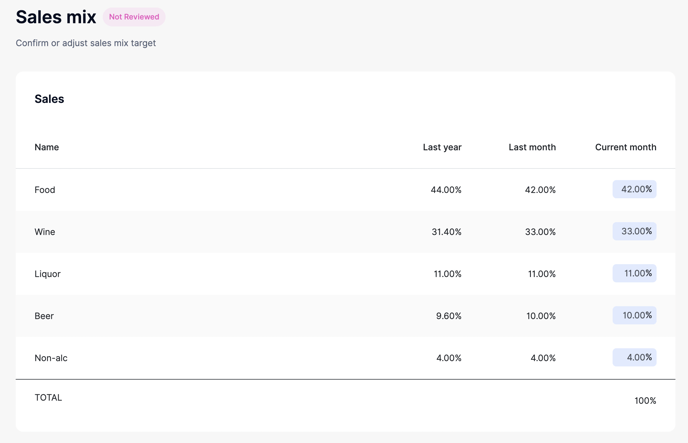
The Sales Mix section provides a breakdown of sales targets by category. This is where you confirm or adjust the sales mix percentages for various items like Food, Wine, Liquor, Beer, and Non-alcoholic beverages. Note: these categories are the same as the Major Categories you have set in your POS.
- Adjusting Sales Percentages:
- For each sales category, you'll see columns representing Last year, Last month, and Current month.
- Input or adjust the percentage in the Current month column based on your sales projections or targets.
- As you adjust the percentages, ensure that the cumulative total for all categories equals 100%.
- Atlas pre-populates these figures with last months actual percentages.
- Unless there is a reason to adjust (such as wine promotion or seasonal changes), Atlas recommends leaving the Sales mix filled with last month's figures.
- Total Percentage:
- At the bottom of the sales categories, ensure the TOTAL is exactly 100%. This confirms that the sales mix is distributed correctly across all categories.
Additional Tips
- These Sales Mix percentages will be used to calculate your Purchase budgets.
4. Set COGS Target
Overview:
This section allows you to view and adjust the overall Cost of Goods Sold (COGS) target for the month in both percentage and dollar values.
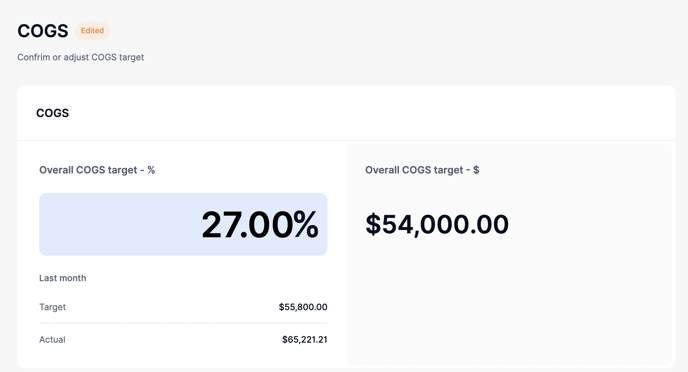
For example, if your sales target is $200,000 and your COGS budget is 27% you have a purchase budget of $54,000 which you can split across your purchase categories.
💡 When determining your purchasing budget, it is important to take into account your current inventory. This will help you avoid purchasing products that you already have in stock.
- Overall COGS Target:
- The Overall COGS target percentage displays the percentage of sales budgeted to be spent on goods.
- The corresponding monetary value is shown in Overall COGS Target dollar value. This is the total amount the business should spend on goods related to the listed categories.
- You can edit these values directly by clicking on them and entering the desired target figures.
- Comparing with Previous Data:
- Review the Last Month Total spend section to see the target and actual COGS spend figures from the previous month. This can help inform your targets for the current month.
- Adjusting COGS for Categories:
-
Under the Adjust COGS targets section, you will see a breakdown by sales categories: Food, Wine, Liquor, Beer, and Non-alcoholic beverages. Again these are the major categories from your POS.
-
For each category, input the target percentage in the column. The system auto-calculates the dollar value based on your inputs.
-
Start by entering your budgeted percentage targets and adjust until your category percentages meet your overall goal
or -
Enter your budgeted percentage targets and adjust the overall target as per the instructions below in red.
.png?width=688&height=528&name=Screen%20Shot%202023-10-01%20at%2010.44.09%20PM%20(1).png)
-
- Summary:
-
- At the bottom, the Totals row will show you a summation of the COGS percentages and amounts for all categories.
- The difference between targets and actuals should be as close to 0.00% as possible, indicating that your COGS targets and totals align perfectly.
Note: there is a variance allowance of +/- $20
-
Additional Tips
- These COGS targets in combination with the Sales Mix percentages will be used to calculate your Purchase budgets.
5. Set Discounts Target
Overview:
In the Discounts section, you have the ability to view or adjust the budget for discounts and voids. This is the budget you will see in your daily reports Discounts and Void Section.
.png?width=688&height=659&name=Screen%20Shot%202023-10-01%20at%2010.45.01%20PM%20(1).png)
- Setting Discounts Target:
- The Discounts target - % displays the intended discount percentage. You can adjust this by clicking on the box and inputting your desired discount rate.
- This will automatically adjust the monetary value of the discount target in Discounts target - $ based on your sales projections for the month.
- Under Last month, you can reference the target and actual discount figures from the previous month to help inform your current settings.
- Voids Overview:
- The Voids section allows you to confirm or adjust the target for voided transactions.
- Setting Voids Target:
- Adjust the voids percentage by clicking and inputting the desired value in the Voids target - % box.
- This will automatically adjust the monetary value of the voids target - $ based on your sales projections for the month.
- The Last month column provides insight into the target and actual voided amounts from the previous month, aiding in decision-making for the current month.
You have now completed the Monthly Planner! Nice work!
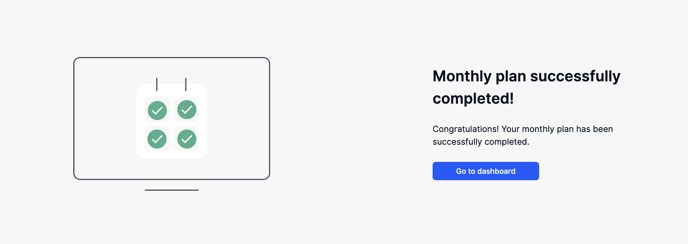
Click “Go to dashboard” to continue.
💡 Additional Tips.
- Editing your monthly Planner: you are able to edit, review your current months planner until the end of the month by simply navigating to Operations → Monthly Planning → Current Month’s Name
- View past Monthly Planners by clicking on any of the months names listed below the current months name.